How to restrict an API key in IpQuery.Info
A key that leaks can be used by anyone until you notice. Restrictions limit where a key works: allowed client IPs for your servers, allowed origins and referrers for browser code. Requests from anywhere else are refused.
Before you start
- An API key
Preview voice Narrated with a local preview voice; the final recording replaces it.
Transcript
Lock an API key to your own servers, so a leaked copy is useless anywhere else.
On API Keys, select the key you want to restrict. Its options open, with Request restrictions below Behavior.
This key is called from Snorkelbyte's servers, so use Allowed client IPs. Enter the server addresses, separated by commas. Origins and referrers only apply to browser requests.
Select Cancel to close the dialog; the change saved when you left the field. Open the key again, and the allowed addresses are still there.
Steps
Open the key ▶ 0:07
In API Keys, select the key's row. The options dialog opens with Request restrictions.
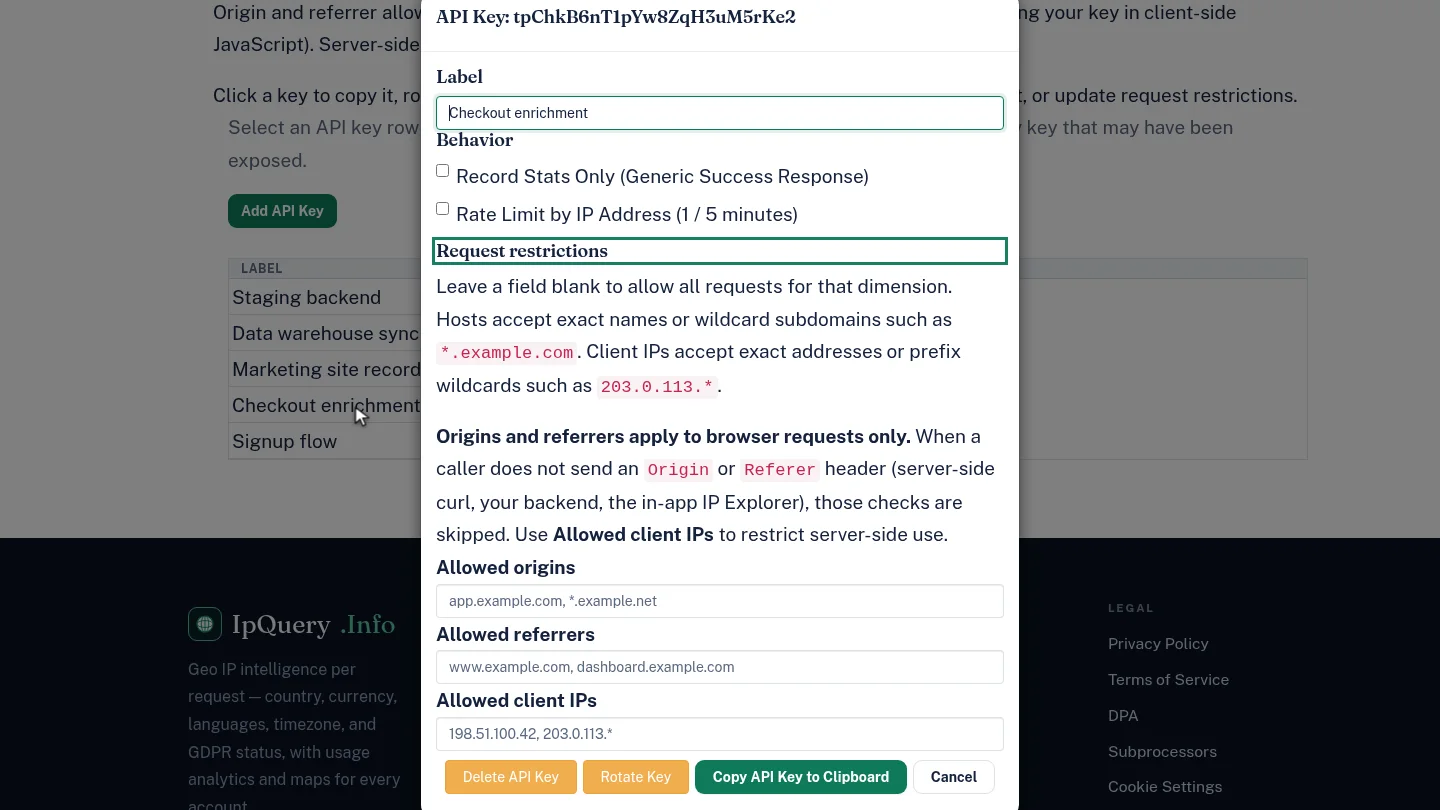
Allow only your servers ▶ 0:15
For a server-side key, enter your servers' addresses in Allowed client IPs, separated by commas. Use Allowed origins and Allowed referrers for keys used in browser code.
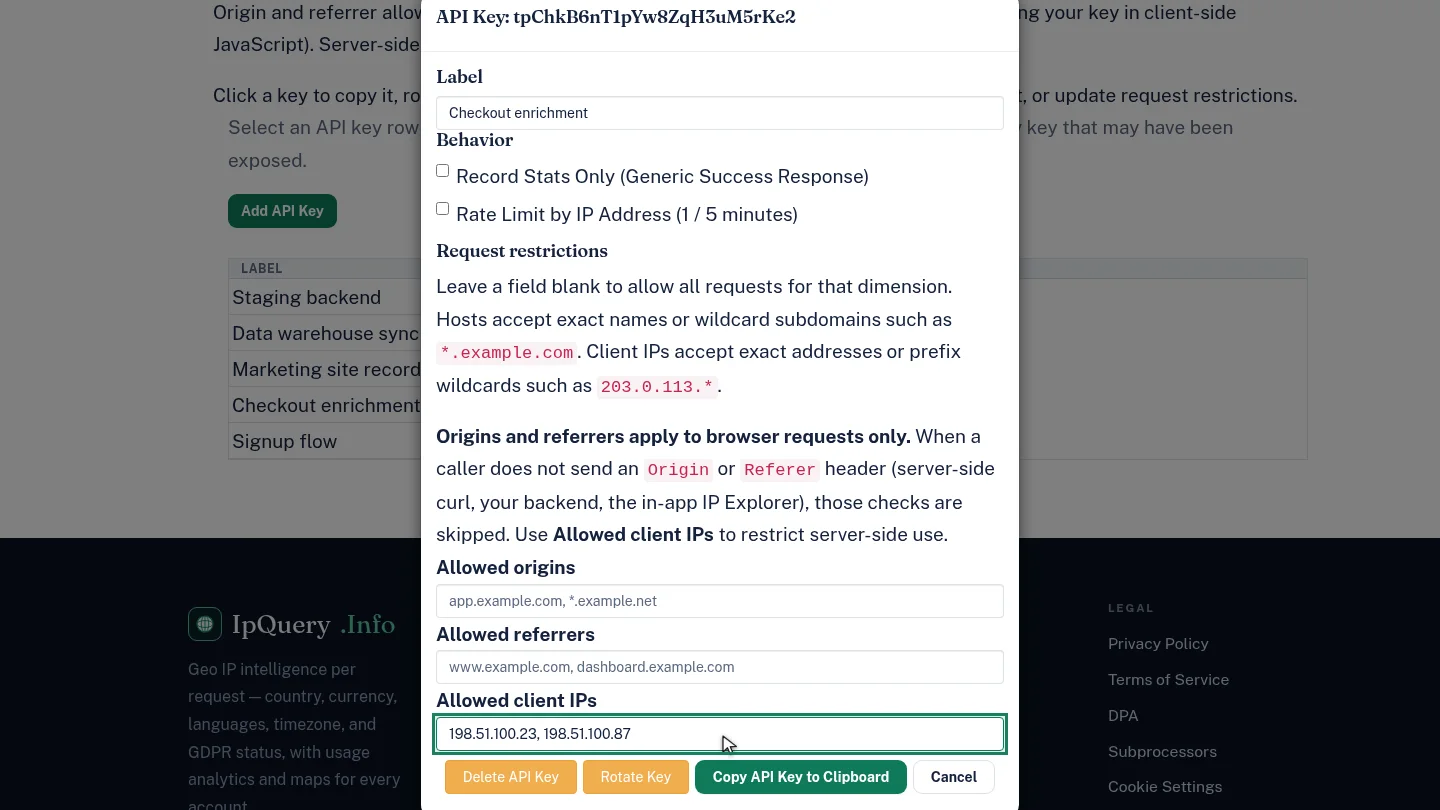
Check it saved ▶ 0:28
Select Cancel, then select the key's row again. Allowed client IPs shows the saved addresses.
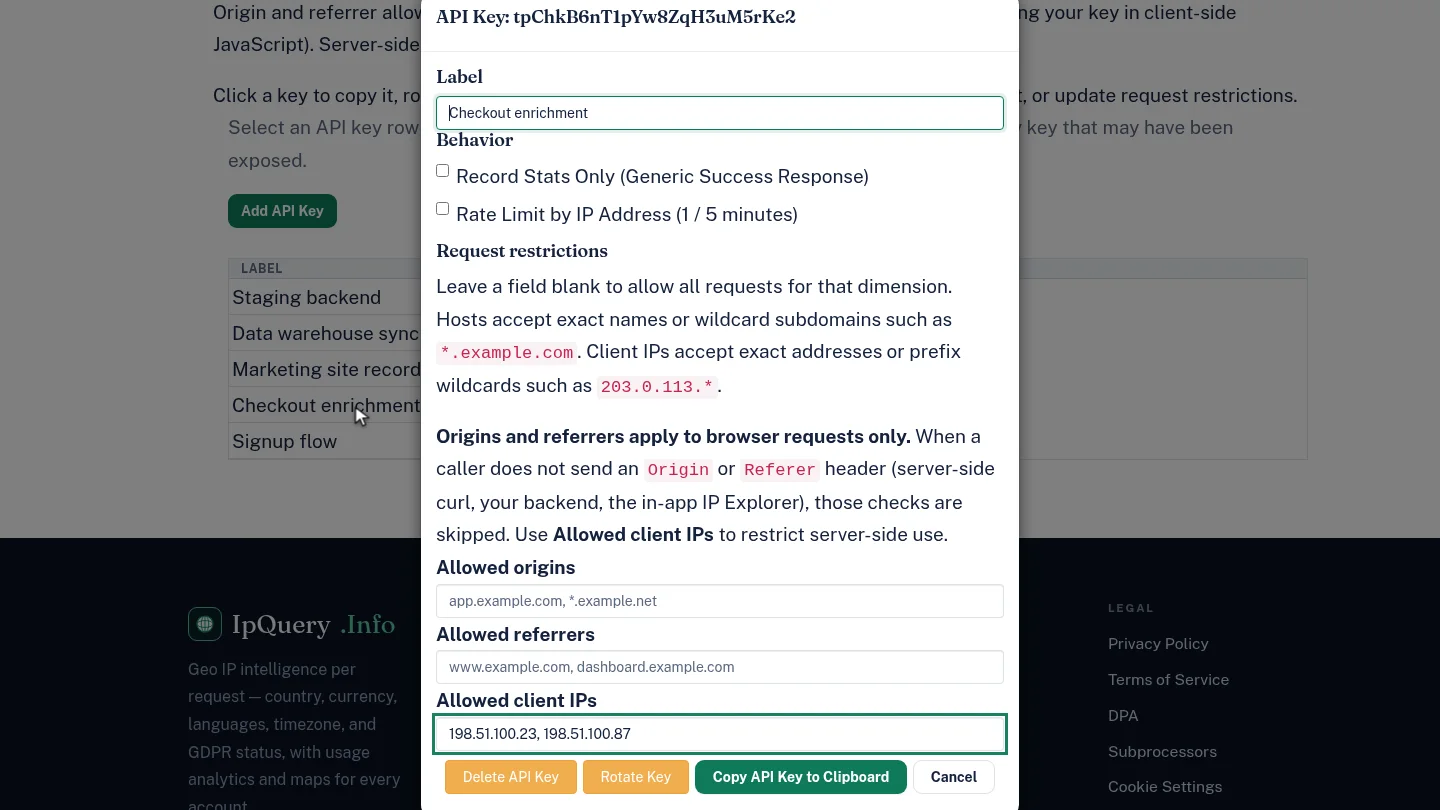
Next steps
Updated 2026-10-26
ip allowlist restrict api key origin allowlist referrer restriction secure api key