How to filter lookup statistics in IpQuery.Info
Knowing where requests come from tells you which markets a feature serves and when traffic changes. Statistics maps recorded lookups by country or US state, and filters them by time range, API key and tag, beside how much of this month's quota you've used.
Before you start
- Some recorded lookups
Preview voice Narrated with a local preview voice; the final recording replaces it.
Transcript
See where your lookups come from, narrowed to the time range, region and application you care about.
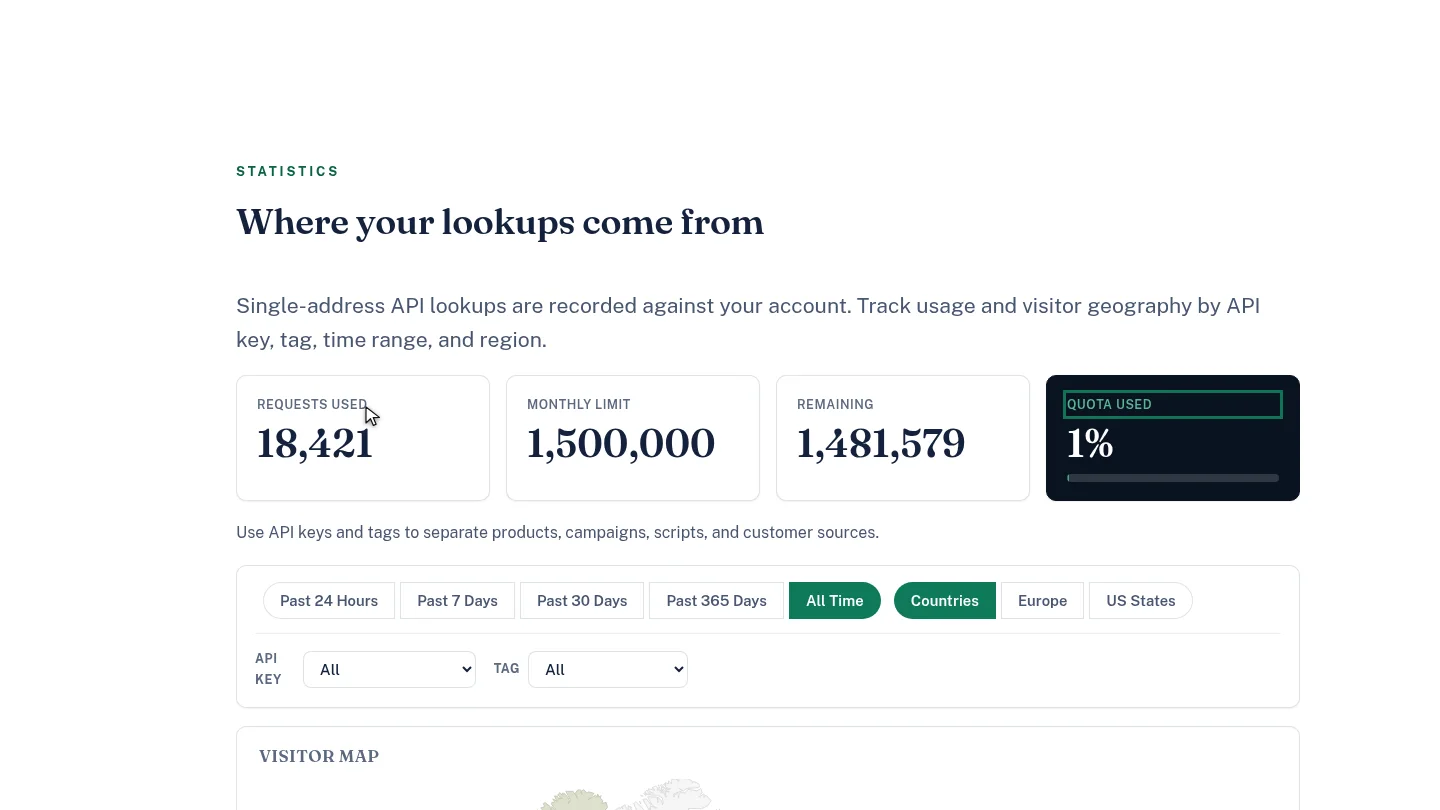
Statistics opens with this month's usage: requests used, the monthly limit, what remains, and the share of quota used.
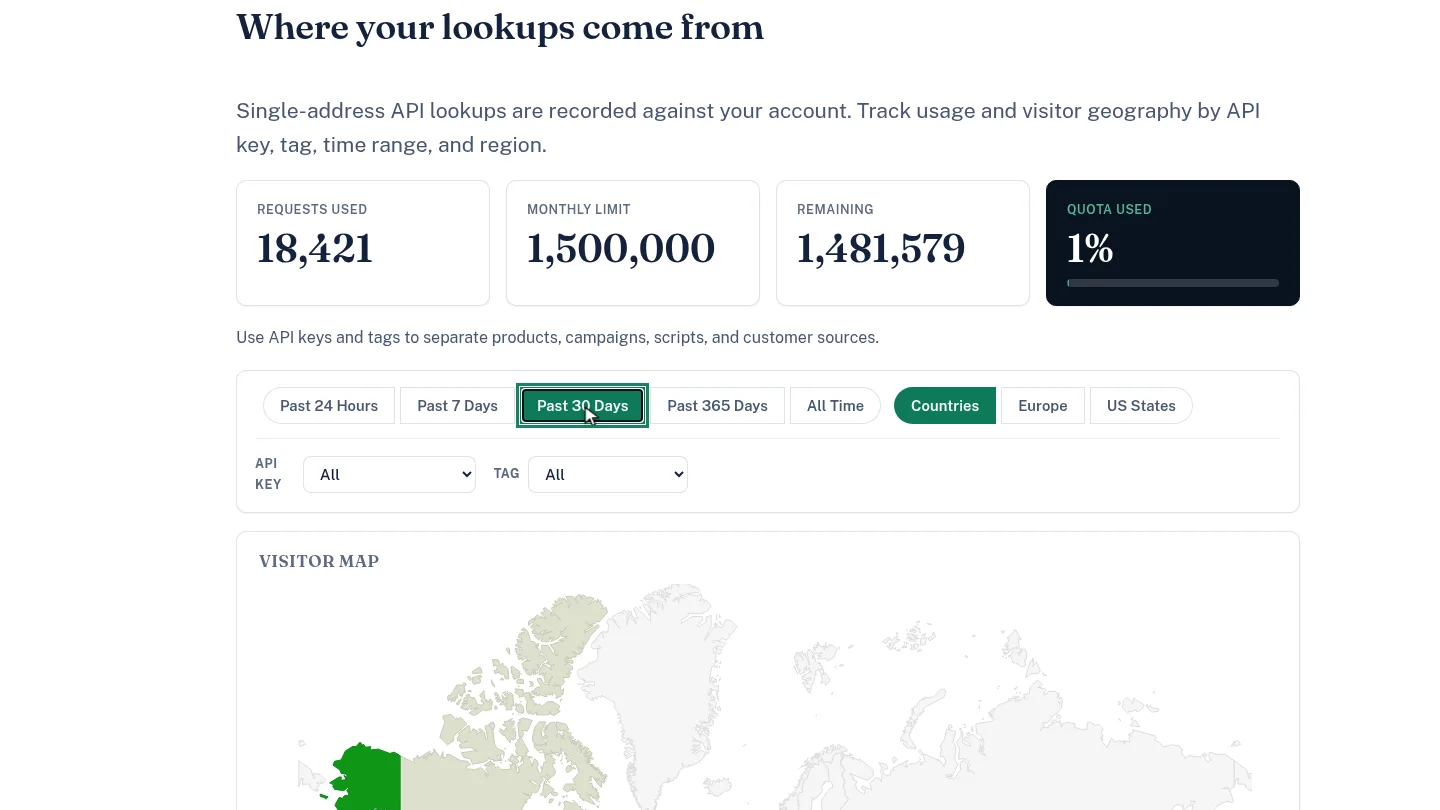
Select Past 30 Days. The visitor map redraws with the lookups from the last month.
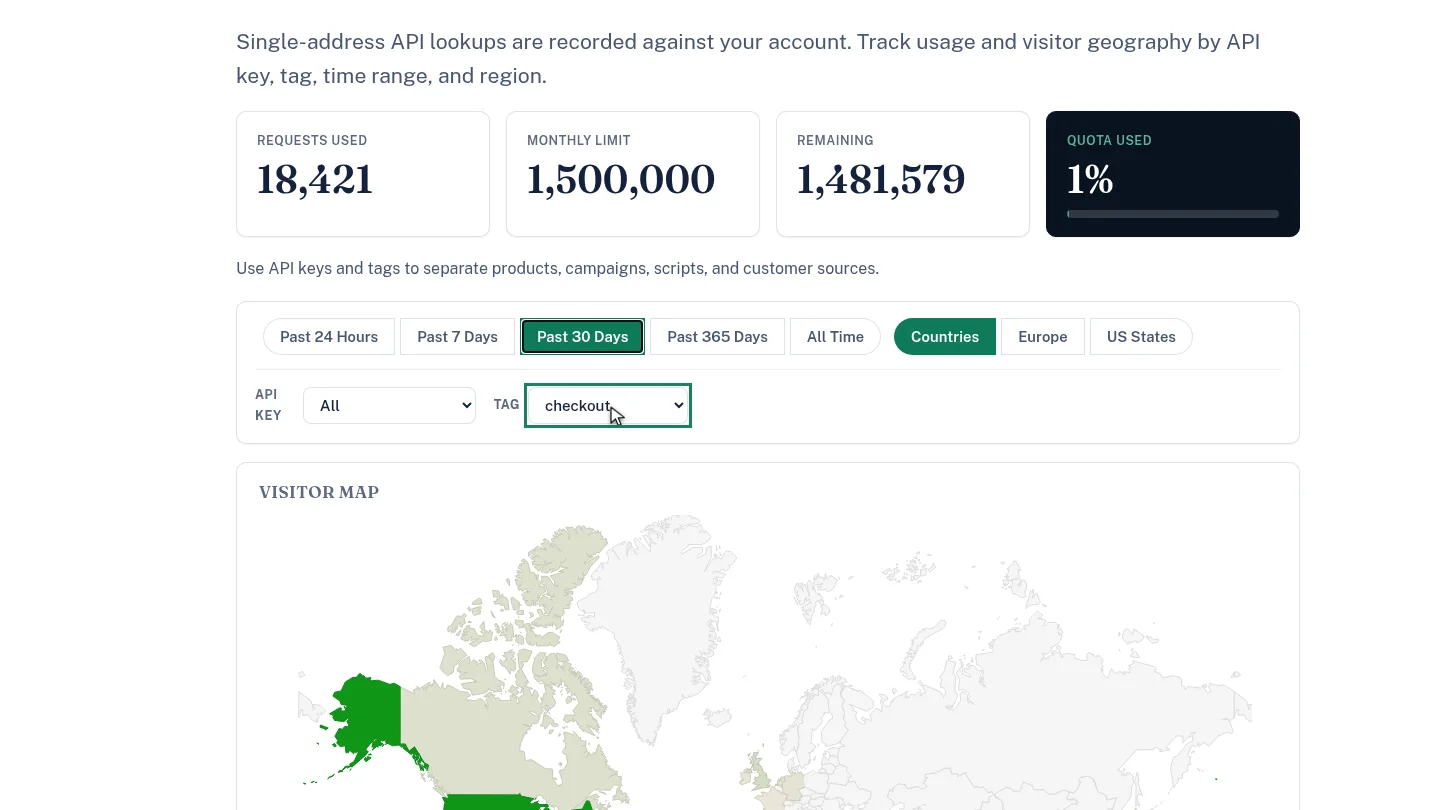
To see one application, choose its tag. Here, checkout shows only lookups from the checkout flow.
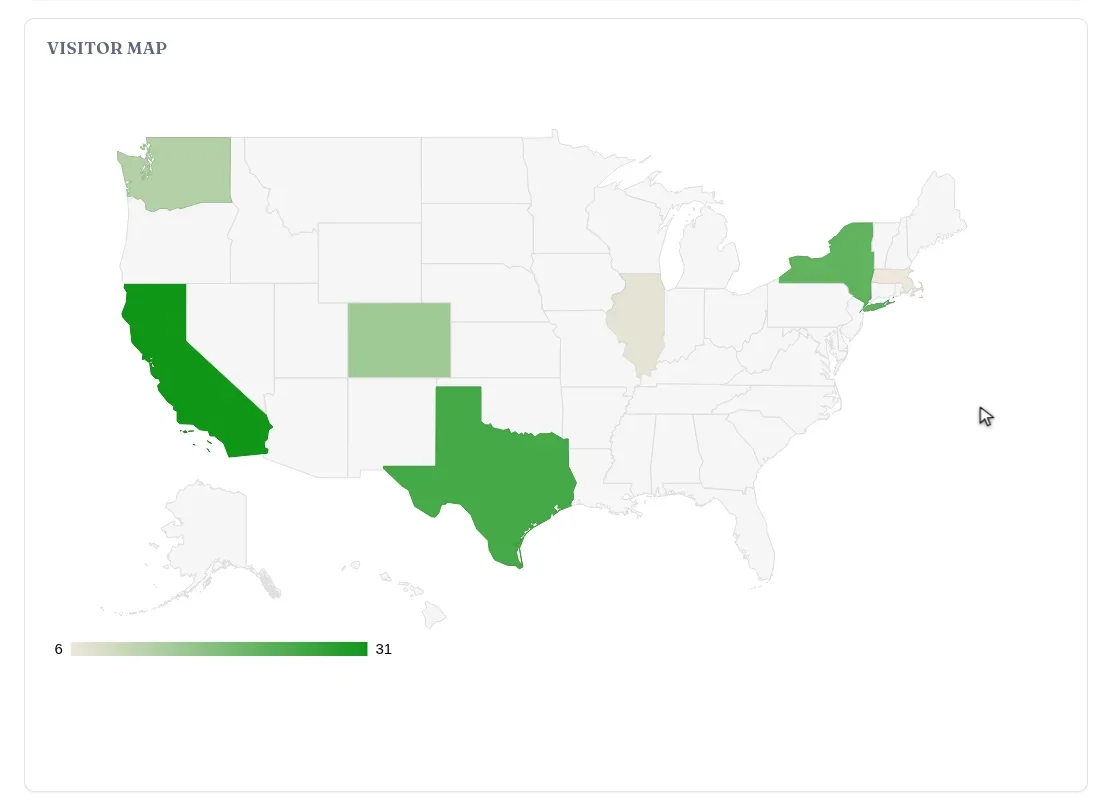
Select US States to zoom the map to the United States, broken down by state. Europe does the same for European countries.
Steps
Check your quota ▶ 0:08
In Statistics, read Requests used, Monthly limit, Remaining and Quota used.
Choose a time range ▶ 0:17
Select a time range, for example Past 30 Days. The Visitor map redraws.
Filter by tag ▶ 0:23
For Tag, choose the tag your application sends. Use API key to filter by key instead.
Change the region ▶ 0:30
Select US States or Europe to zoom the map; Countries returns to the world view.
Next steps
Updated 2026-10-26
ip analytics visitor map api usage quota traffic by country