How to look up a list of IP addresses and download the results in IpQuery.Info
When a support ticket or a log excerpt hands you a handful of addresses, checking them one at a time is slow. Batch Lookup enriches up to eight addresses at once and lets you download the full response as JSON.
Before you start
- No account needed: Batch Lookup is a free, rate-limited demo
Preview voice Narrated with a local preview voice; the final recording replaces it.
Transcript
Enrich a short list of IP addresses in one go, then download the results as JSON.
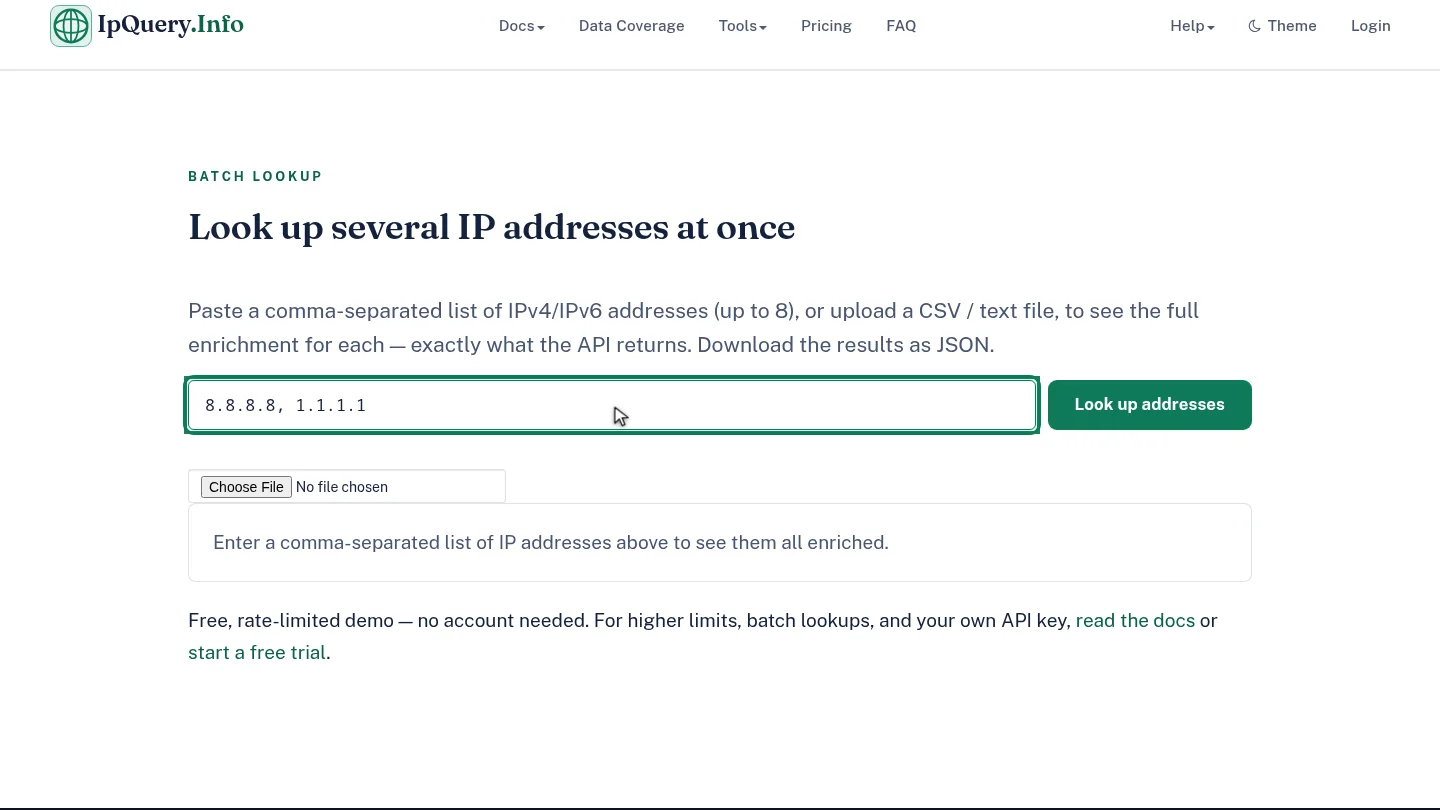
Paste the addresses into the box, separated by commas. The demo takes up to eight at once, and private or reserved addresses are skipped.
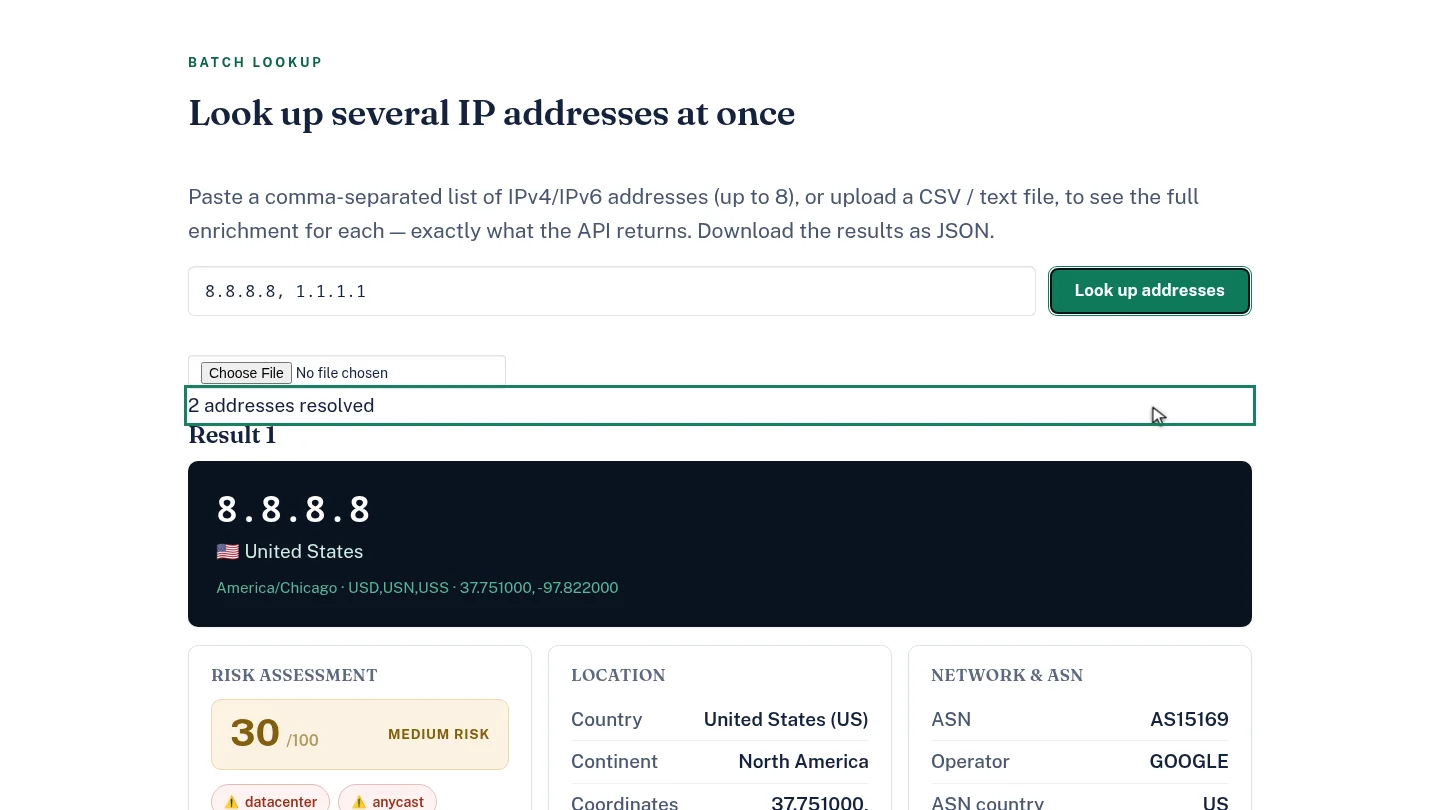
Select Look up addresses. A summary says how many addresses resolved, and each one gets its own result card.
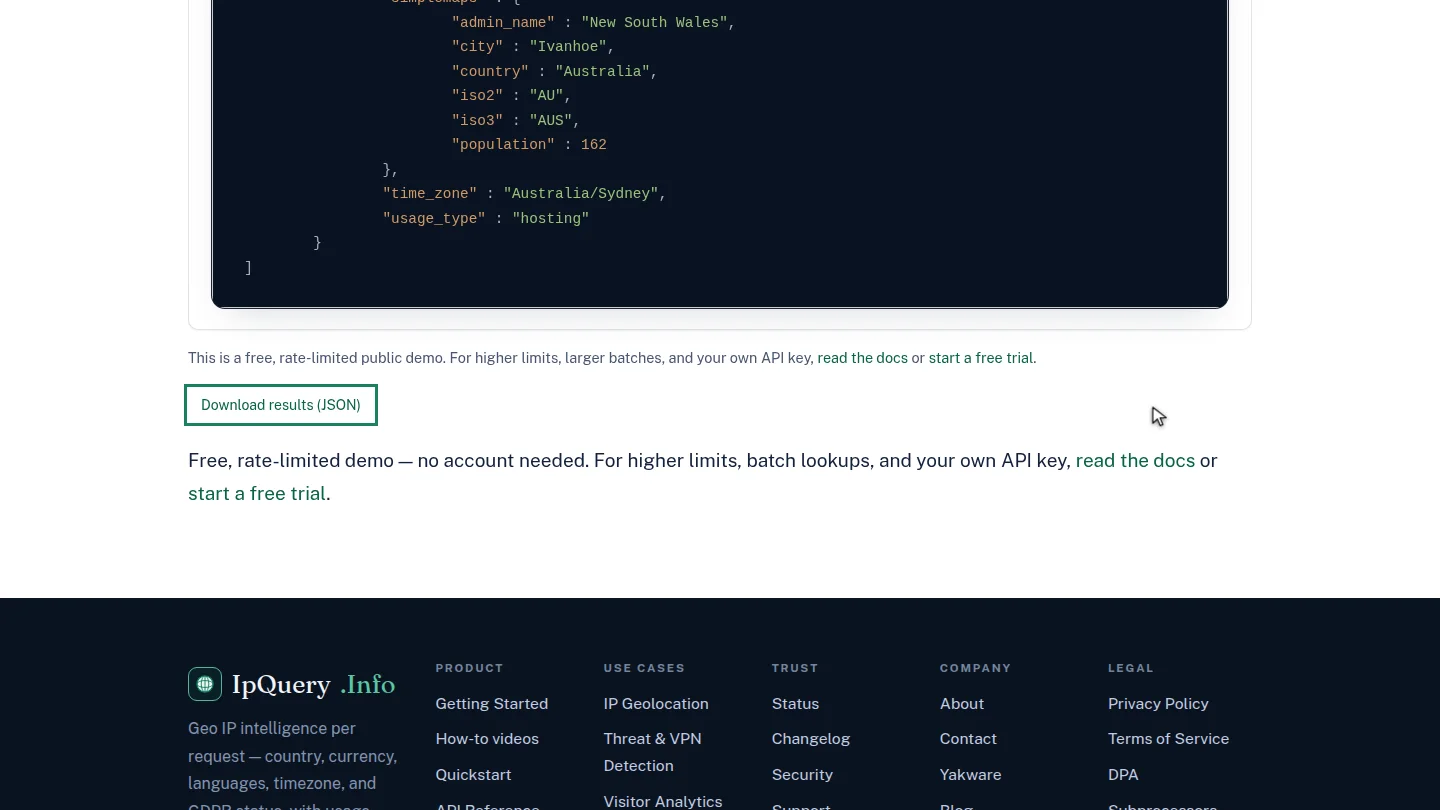
Scroll to the end and select Download results, JSON. The file contains the same raw response the API returned, ready for a spreadsheet or a script.
Steps
Paste the addresses ▶ 0:07
In Batch Lookup, paste the addresses, separated by commas. Up to eight are looked up; private and reserved addresses are skipped. You can also upload a CSV or text file.
Run the lookup ▶ 0:17
Select Look up addresses. A summary line counts the resolved addresses, followed by a Result card for each.
Download the results ▶ 0:25
Select Download results (JSON) to save ipquery-results.json.
Next steps
Updated 2026-10-26
bulk ip lookup batch geolocation csv ip lookup export ip data json